 tidlet

Screenshot. Switch apps. Paste.
SnapPaste keeps your recent screenshots in the menu bar. Press ⌃⌘V and the latest one is pasted into whatever app you're in: a chat, an AI prompt, an issue, an email. Your clipboard comes back the way it was.
macOS 13 or later · Apple silicon & Intel · one key, 2 Macs
How it works
Three steps, most of them yours.
- Take a screenshot
As usual, with ⇧⌘4 or ⇧⌘5. SnapPaste adds it to your recent list. It doesn't touch your clipboard.
- Switch to any app
A chat, an AI prompt box, a GitHub issue, an email.
- Press ⌃⌘V
SnapPaste pastes the latest screenshot, then puts your previous clipboard back. ⌃⌘2 to ⌃⌘9 paste older ones.
A closer look
The whole app, screen by screen.
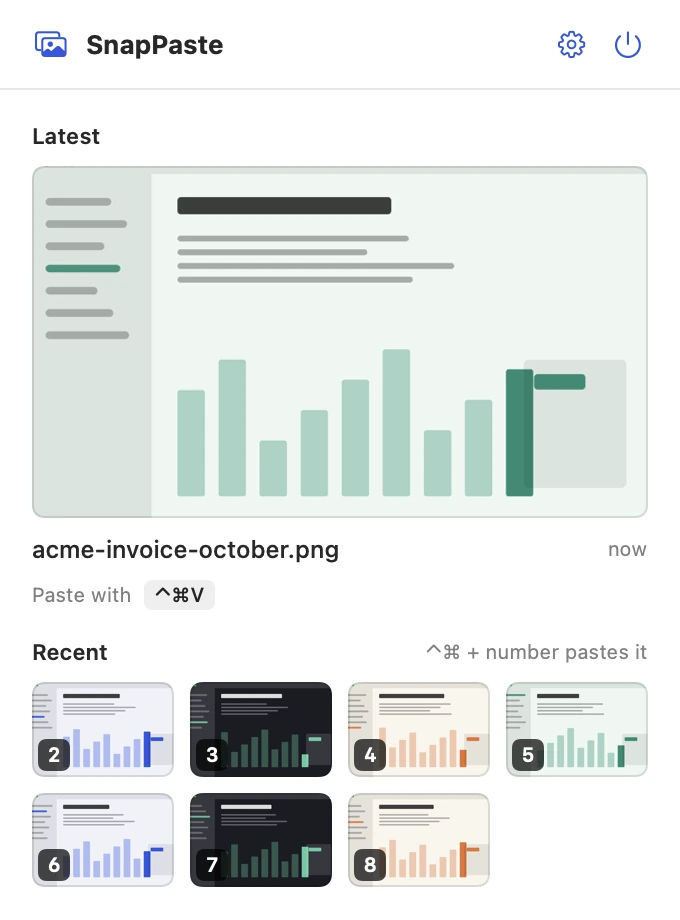
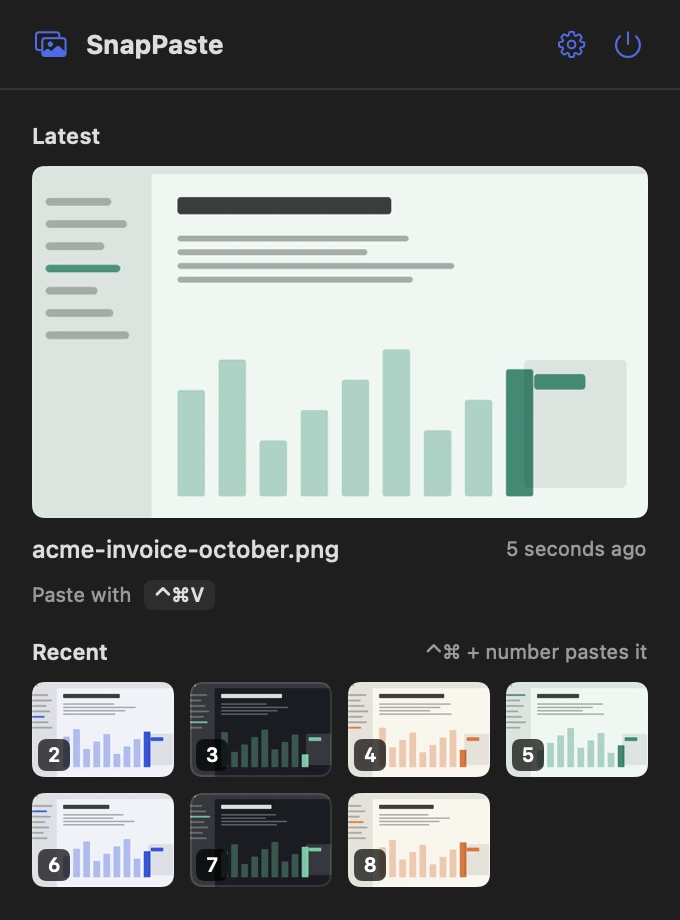
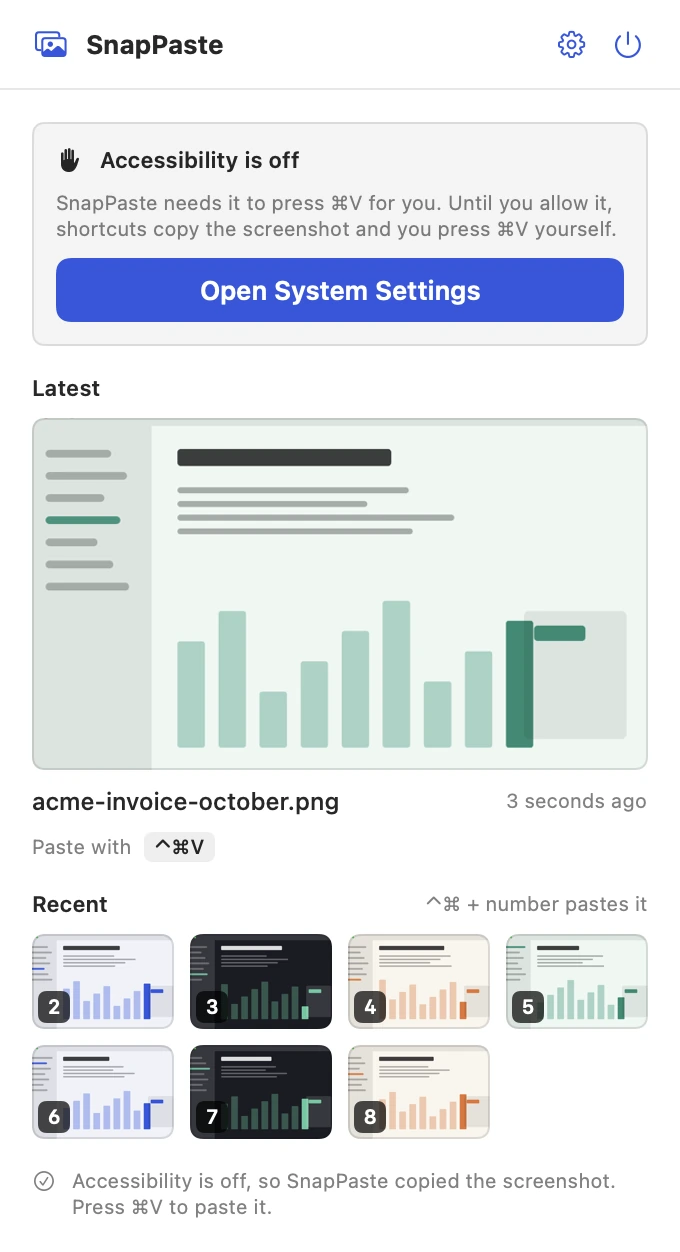
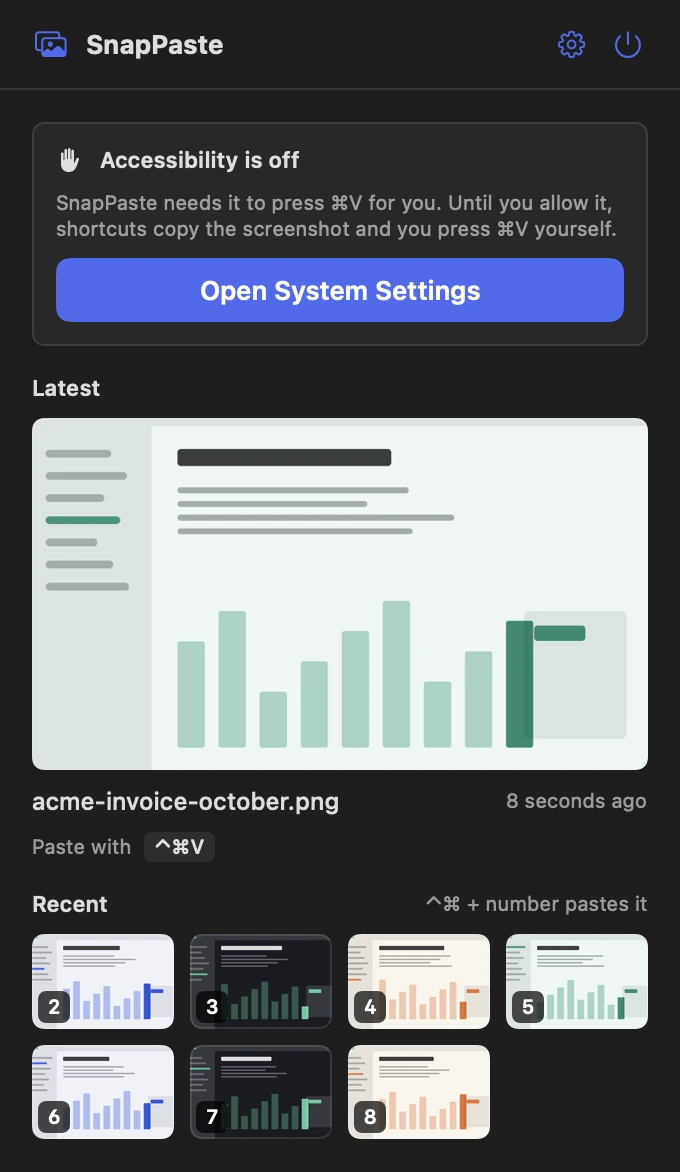
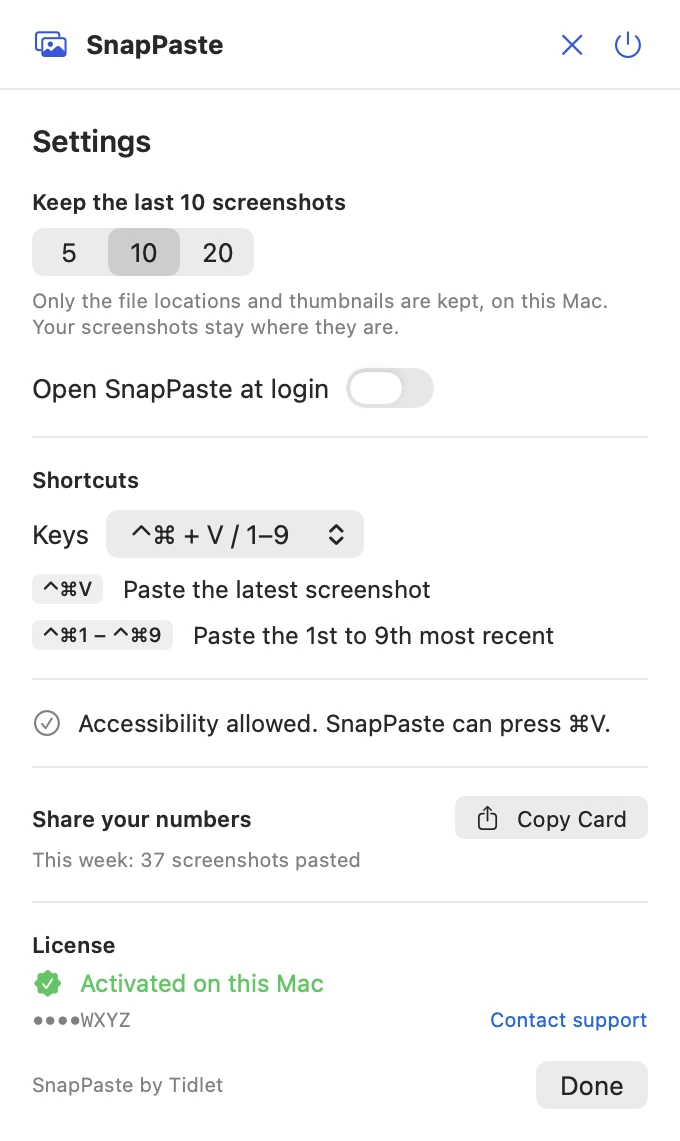
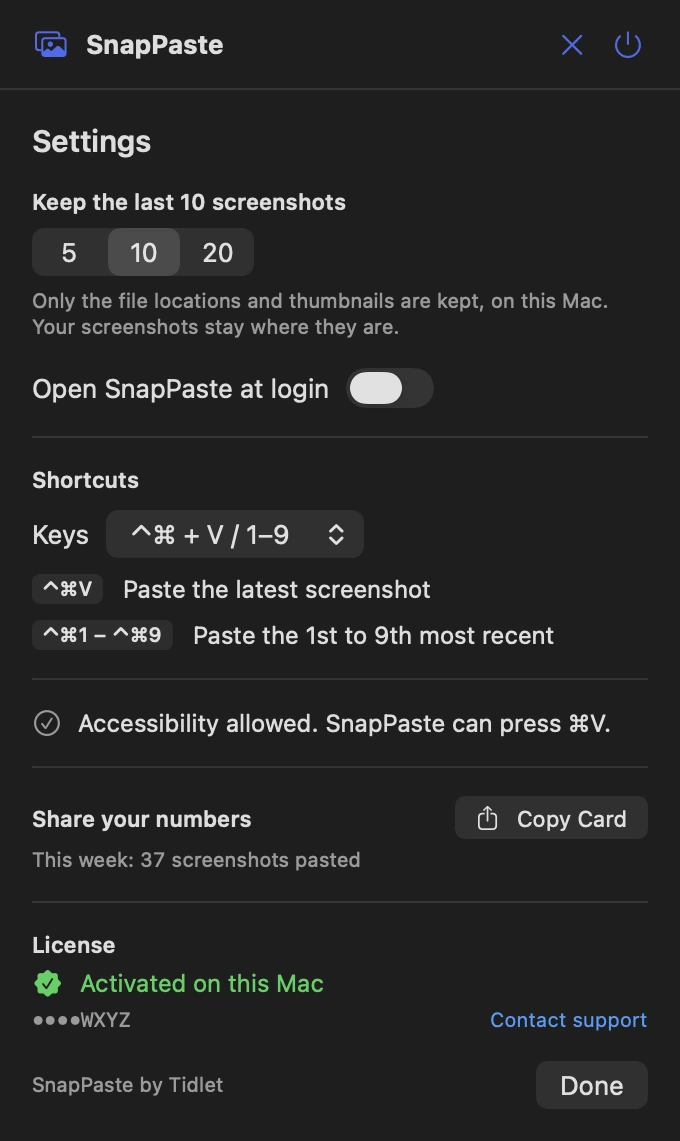
These are real screens from SnapPaste, in light and dark to match your Mac. In Tidlet they open from the Tidlet icon in your menu bar.
Your last screenshots, one glance away
The latest is shown large, with the shortcut beside it. Older ones are numbered so you know which key pastes them. Click any thumbnail to copy it.
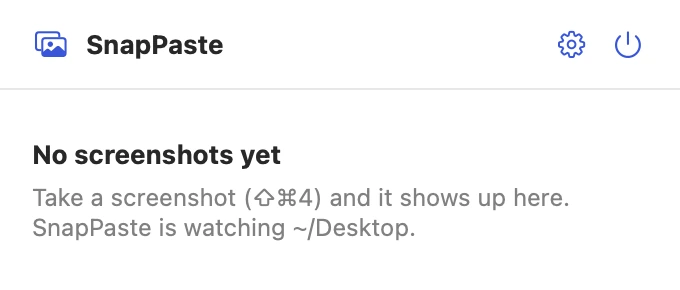
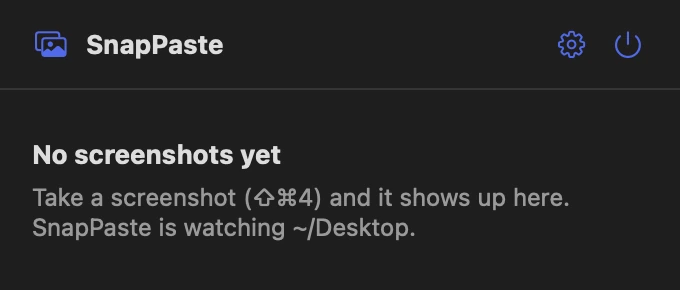
Ready before your first screenshot
Until you take one, the panel tells you where it's watching. Your next ⇧⌘4 shows up here a moment later.
Copy-only, if you'd rather
Without Accessibility permission, the shortcuts copy the screenshot and say so, and you press ⌘V yourself. One button turns pasting on.
Settings that fit on one screen
Keep the last 5, 10 or 20 screenshots, open at login, and pick the keys for the shortcuts: ⌃⌘, ⌥⌘, ⌃⌥, ⇧⌘ or ⌃⇧. Plus a card to share how many screenshots you've pasted.
Features
Everything it does.
The full list fits on one screen.
Paste the latest with one shortcut
⌃⌘V pastes your newest screenshot into the app in front.
Older ones too
⌃⌘1 to ⌃⌘9 paste the 1st to 9th most recent. The panel shows which number is which.
Your clipboard stays yours
SnapPaste never copies on capture. After a paste, your previous clipboard is put back.
Pick your keys
Use ⌃⌘, ⌥⌘, ⌃⌥, ⇧⌘ or ⌃⇧ if ⌃⌘ clashes with another app.
Works in your terminal
In Terminal, iTerm2 or Ghostty, ⌃⌘V pastes the screenshot's file path, so Claude Code can read the image.
Copy-only if you prefer
Without Accessibility permission, the shortcut copies the screenshot and you press ⌘V yourself.
Privacy
What SnapPaste sees, and what it sends.
The app has no analytics, ads or tracking. The full details are in our privacy policy.
What it reads
- New screenshots in your screenshot folder.
- It keeps their file locations and small thumbnails, on your Mac.
What it sends
- Your license key, an activation ID and your Mac's name, to Dodo Payments, to check the key.
- Nothing else, ever.
What it never does
- Upload your screenshots.
- Write to your clipboard when you take a screenshot.
- Track how you use it.
Price
$9one time, all 9 tools
- SnapPaste and 8 more tools in one app, Tidlet.
- One payment of $9. No subscription.
- A license key by email, for 2 Macs.
- Refund within 14 days if it doesn't work on your Mac and we can't fix it.
- Help by email at hello@tidlet.com.
Also in Tidlet: DeskClean, ShotName, CleanCopy, TalkShare, SlideFind, PasteMask, HushMic and ClapRemote.



System requirements
- macOS
- 13 Ventura or later
- Chip
- Apple silicon and Intel (universal)
- Download
- Tidlet.dmg · 5.5 MB, all 9 tools
- Version
- Tidlet 1.0.4
- Access
- Your screenshot folder. macOS asks once.
- Accessibility
- Optional. Needed to press ⌘V for you; without it, shortcuts copy only.
- Network
- License check only
- Shortcuts
- ⌃⌘V · ⌃⌘1–9 (changeable)
Why does it ask for Accessibility?
macOS only lets an app press ⌘V for you with Accessibility permission. SnapPaste uses it for that alone. If you say no, the shortcuts copy the screenshot and you paste it yourself.
Will it mess up what I copied?
No. SnapPaste puts your previous clipboard back right after pasting. If you copy something new in that moment, it leaves the new copy alone.
Does it work with Claude Code in the terminal?
Yes. Terminals paste text, not pictures, so in a terminal ⌃⌘V pastes the screenshot's file path, and Claude Code reads the image from it.
Does it work with ShotName?
Yes. SnapPaste follows a screenshot even after it's renamed or moved, so the names ShotName gives are what you see.
Is it safe to download?
Yes. The app is signed with our Apple Developer ID and notarized by Apple, which checks it for malware before it can open on your Mac.
Can I buy SnapPaste on its own?
SnapPaste comes in Tidlet, one menu bar app with all nine Tidlet tools. $9 unlocks every one of them; switch on SnapPaste and leave the rest off if you like.
Is there a free trial?
Yes. Every tool works for 3 days from the first launch, with no key and no account. The trial runs on your Mac and sends nothing. After that the tools pause until you enter a license key. If Tidlet doesn't work on your Mac and we can't fix it, we refund you within 14 days.
How many Macs can I use it on?
One key activates Tidlet on 2 Macs. New Mac? Email hello@tidlet.com with your receipt and we'll free a slot.
SnapPaste and 8 more, $9.
No subscription.
One key unlocks every Tidlet tool, on 2 Macs.