 tidlet
Clap twice. Your music pauses.
Your hands are full, or you're across the room, and the song needs pausing. Clap twice and ClapRemote presses Play/Pause; three times for the next track. Prefer snapping your fingers? Switch to Snaps. It listens for the rhythm of a clap or snap, checked by Apple's on-device sound classifier, so typing and talking don't set it off.
macOS 14 or later · Apple silicon & Intel · one key, 2 Macs
How it works
Three steps, most of them yours.
- Clap twice
About a third of a second apart, then pause. Or switch to Snaps.
- ClapRemote hears the rhythm
Sharp sounds 0.12 to 0.7 s apart with quiet before and after, confirmed by Apple's sound classifier on your Mac.
- The action runs
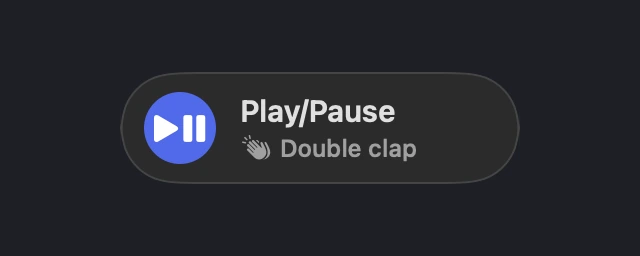
Play/Pause by default, Next track for three claps. A small notice says what ran: “Play/Pause · Double clap”.
A closer look
The whole app, screen by screen.
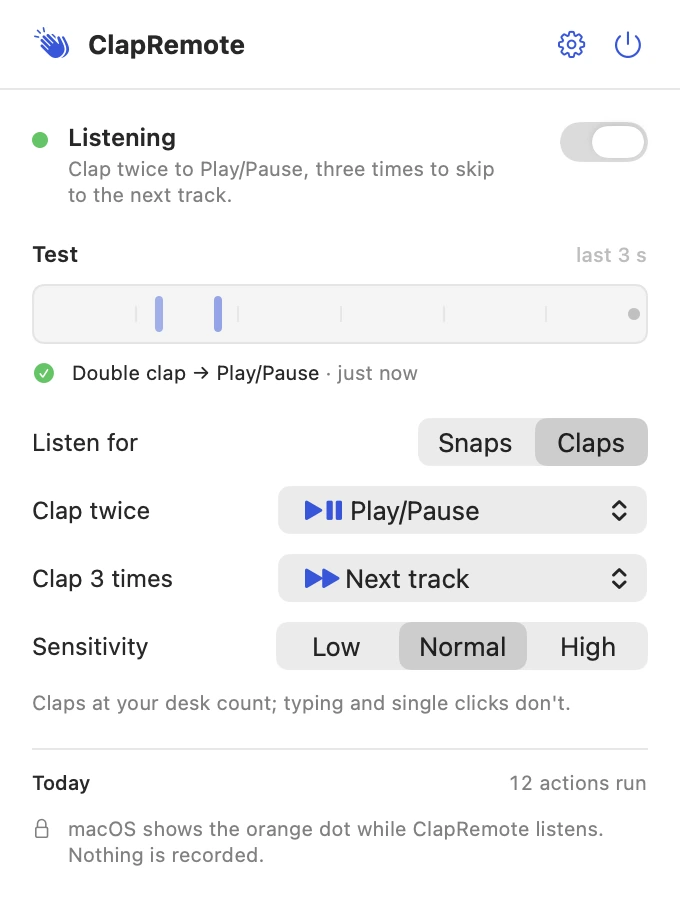
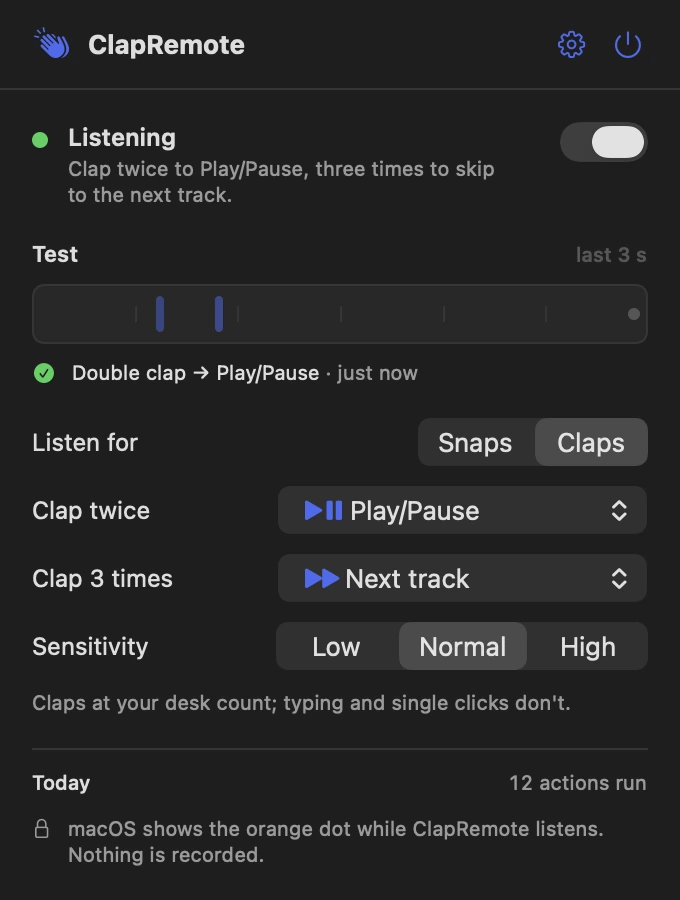
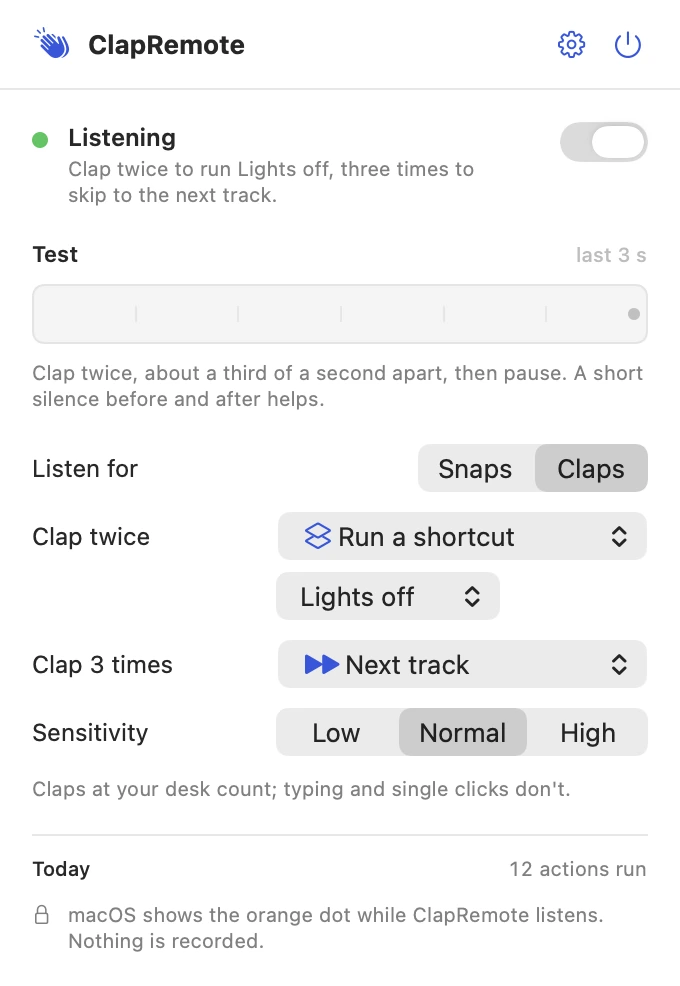
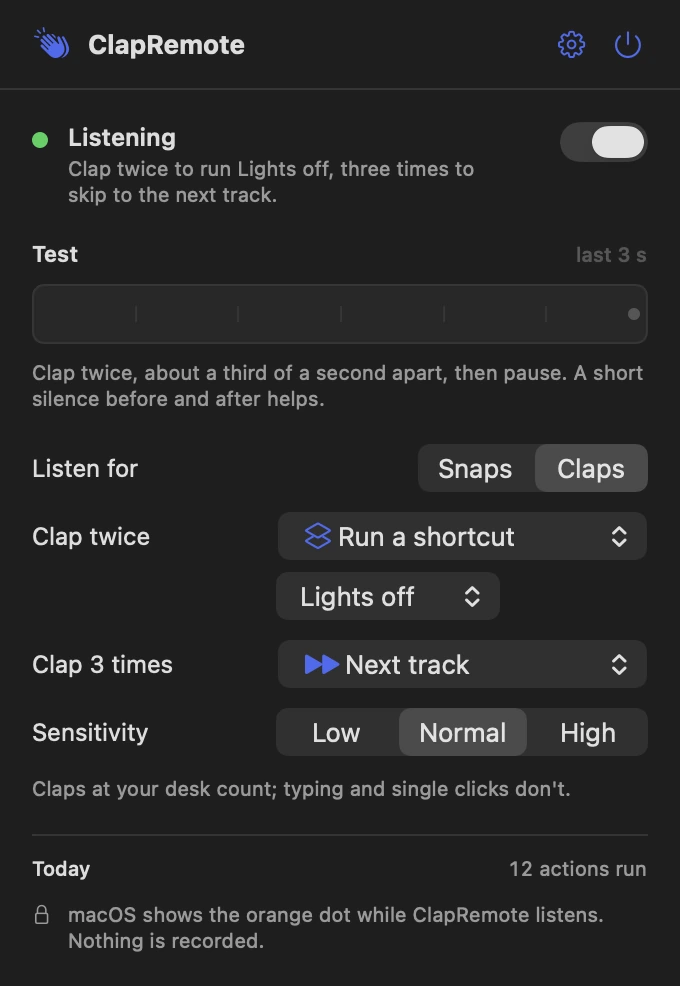
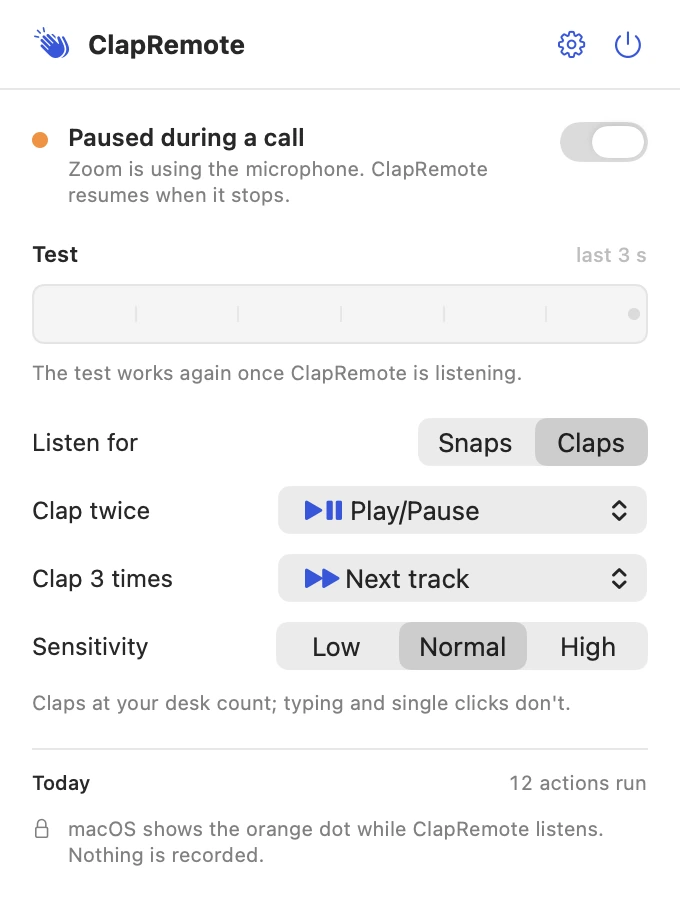
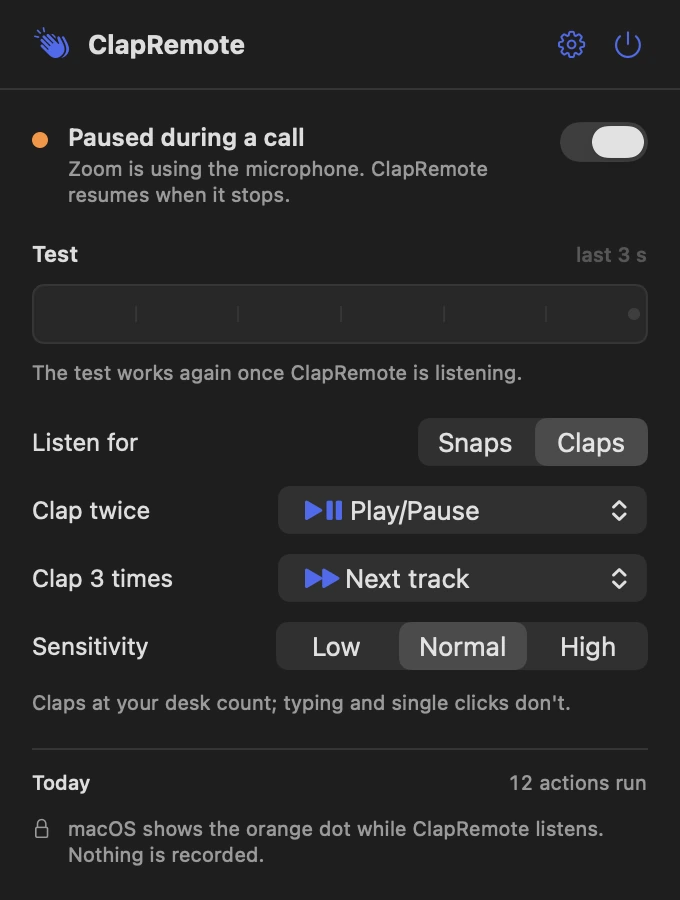
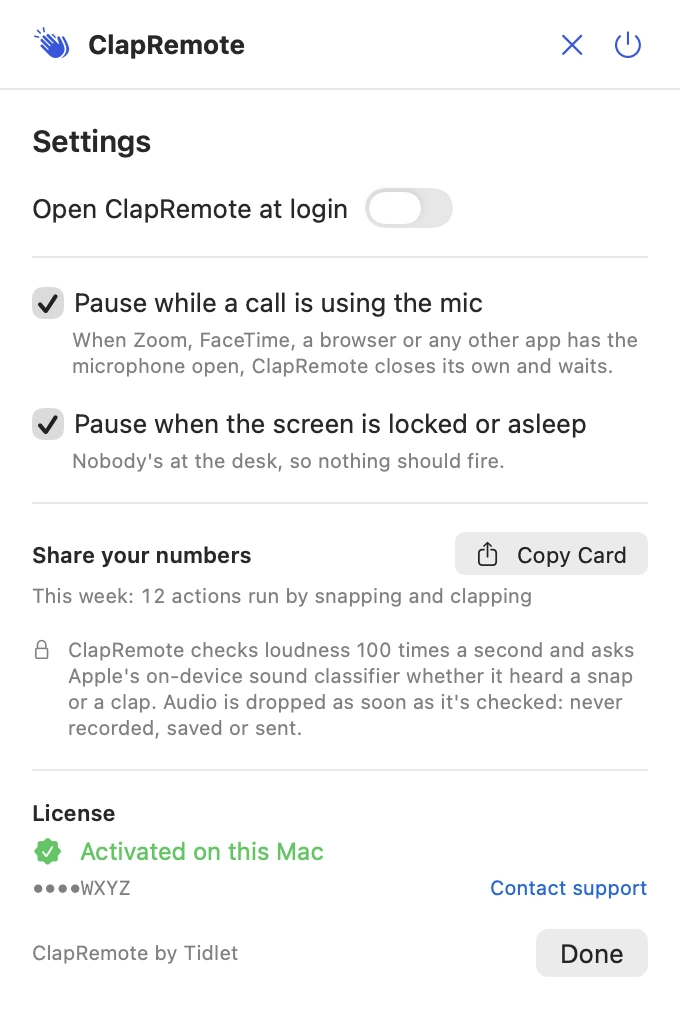
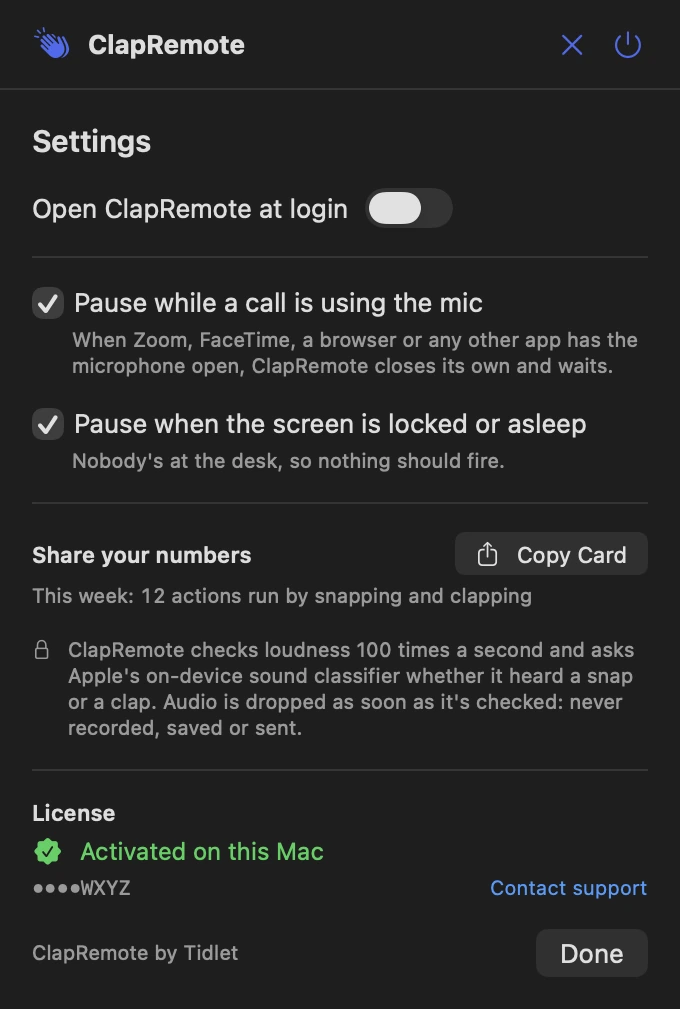
These are real screens from ClapRemote, in light and dark to match your Mac. In Tidlet they open from the Tidlet icon in your menu bar.
Learn the rhythm
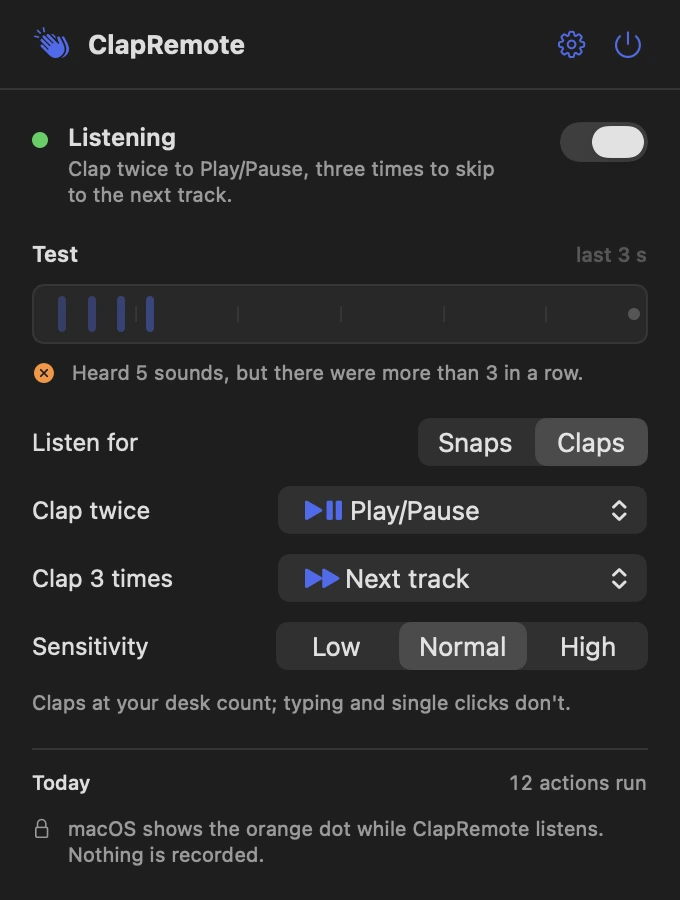
The Test strip marks each snap or clap it hears in the last 3 seconds and says what it ran, so you can find the pace that works.
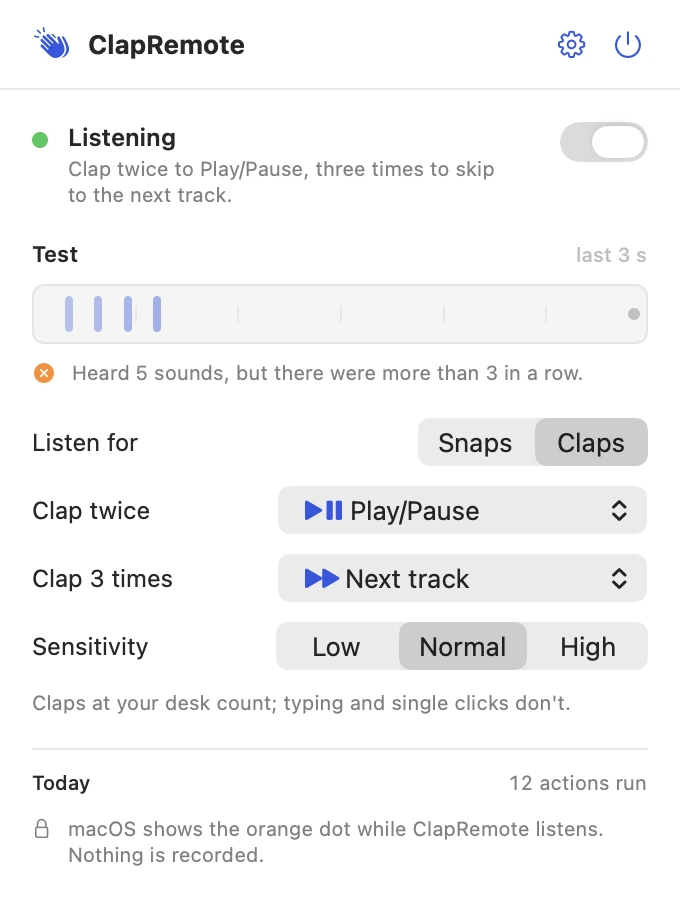
Says why it didn't fire
Clapped along to a beat? The strip tells you what it heard: “Heard 5 sounds, but there were more than 3 in a row.”
A notice for every action
A small notice shows what ran and how you asked for it, then fades.

Any action, or a Shortcut
Two claps and three claps each get an action: Play/Pause, Next track, mute or unmute sound, mute or unmute your mic, sleep the display, run a Shortcut, or nothing.
Quiet during calls
While a call uses the mic, ClapRemote closes its own and waits. It pauses while the screen is locked or asleep, too.
Settings on one screen
Open at login, pause during calls, pause when the screen is locked, a card to share how many actions you've run, and your license.
Features
Everything it does.
The full list fits on one screen.
Claps or snaps
Claps by default; switch to Snaps in the panel. Twice for Play/Pause and three times for Next track, or the action you pick for each.
Seven choices
Play/Pause, Next track, mute or unmute sound, mute or unmute your mic, sleep the display, run a Shortcut, or nothing.
Not set off by typing
It needs sharp sounds 0.12–0.7 s apart that stand out from everything around them, and Apple's sound classifier has to agree. On 160 real recorded sounds (typing, clicks, knocks, footsteps, drips) at Normal sensitivity: 0 false triggers for snaps, 2 for claps.
Works over a video
While another app plays sound, ClapRemote filters out what your speakers play and listens for claps above it, so you can pause the video you're watching. Very loud playback can still drown a clap.
Steps aside for calls
It pauses while a call uses the mic, and while the screen is locked or asleep. Both are on by default.
Nothing recorded
macOS shows the orange mic dot while ClapRemote listens. Each sound is checked on your Mac and dropped.
Privacy
What ClapRemote sees, and what it sends.
The app has no analytics, ads or tracking. The full details are in our privacy policy.
What it reads
- Your mic's audio while it listens, in memory only, to spot the rhythm of a clap or snap. Apple's sound classifier checks it on your Mac.
- Whether another app is using the mic, and whether the screen is locked, so it can pause.
- Whether another app is playing sound (not the sound itself), so it can filter your speakers out.
What it sends
- Your license key, an activation ID and your Mac's name, to Dodo Payments, to check the key.
- Nothing else, ever.
What it never does
- Record, save or send audio.
- Use Accessibility for anything but the media keys, for Play/Pause and Next track.
- Track how you use it.
Price
$9one time, all 9 tools
- ClapRemote and 8 more tools in one app, Tidlet.
- One payment of $9. No subscription.
- A license key by email, for 2 Macs.
- Refund within 14 days if it doesn't work on your Mac and we can't fix it.
- Help by email at hello@tidlet.com.
Also in Tidlet: DeskClean, ShotName, SnapPaste, CleanCopy, TalkShare, SlideFind, PasteMask and HushMic.

System requirements
- macOS
- 14 Sonoma or later
- Chip
- Apple silicon and Intel (universal)
- Download
- Tidlet.dmg · 5.5 MB, all 9 tools
- Version
- Tidlet 1.0.4
- Permissions
- Microphone. Accessibility only for Play/Pause and Next track (media keys). macOS asks once for each.
- Network
- License check only
- Claps or snaps
- 2 or 3; claps 0.12–0.7 s apart, snaps 0.12–1 s
- Sensitivity
- Low · Normal · High
- Actions
- Play/Pause, Next track, mute sound, mute mic, sleep display, a Shortcut
Will music with clapping in it set it off?
It can. Handclaps in music playing from your speakers sound just like yours to the mic.
Does it work while a video or music is playing?
Yes. While another app plays sound, ClapRemote filters out what your speakers play and listens for claps above it. At normal volume most claps get through; with the volume very high it can miss, so clap a little louder.
Will typing or talking trigger it?
No. It needs a pattern of sharp sounds that stand out from everything around them, and Apple's sound classifier has to hear a clap or a snap. Tested on 160 real recorded sounds (typing, clicks, knocks, footsteps, drips), it had 0 false triggers for snaps and 2 for claps (a can opening and a crackling fire) at Normal sensitivity.
Why does it ask for Accessibility?
Only to press the media keys for Play/Pause and Next track. The other actions don't need it.
Does it record what I say?
No. macOS shows the orange mic dot because ClapRemote reads the mic, but each sound is checked on your Mac and dropped. Nothing is recorded, saved or sent.
What happens during a call?
ClapRemote pauses while a call uses the mic, so a clap on a call doesn't skip your music, and it resumes when the call ends. You can turn that off in Settings.
Is it safe to download?
Yes. The app is signed with our Apple Developer ID and notarized by Apple, which checks it for malware before it can open on your Mac.
Can I buy ClapRemote on its own?
ClapRemote comes in Tidlet, one menu bar app with all nine Tidlet tools. $9 unlocks every one of them; switch on ClapRemote and leave the rest off if you like.
Is there a free trial?
Yes. Every tool works for 3 days from the first launch, with no key and no account. The trial runs on your Mac and sends nothing. After that the tools pause until you enter a license key. If Tidlet doesn't work on your Mac and we can't fix it, we refund you within 14 days.
How many Macs can I use it on?
One key activates Tidlet on 2 Macs. New Mac? Email hello@tidlet.com with your receipt and we'll free a slot.
ClapRemote and 8 more, $9.
No subscription.
One key unlocks every Tidlet tool, on 2 Macs.